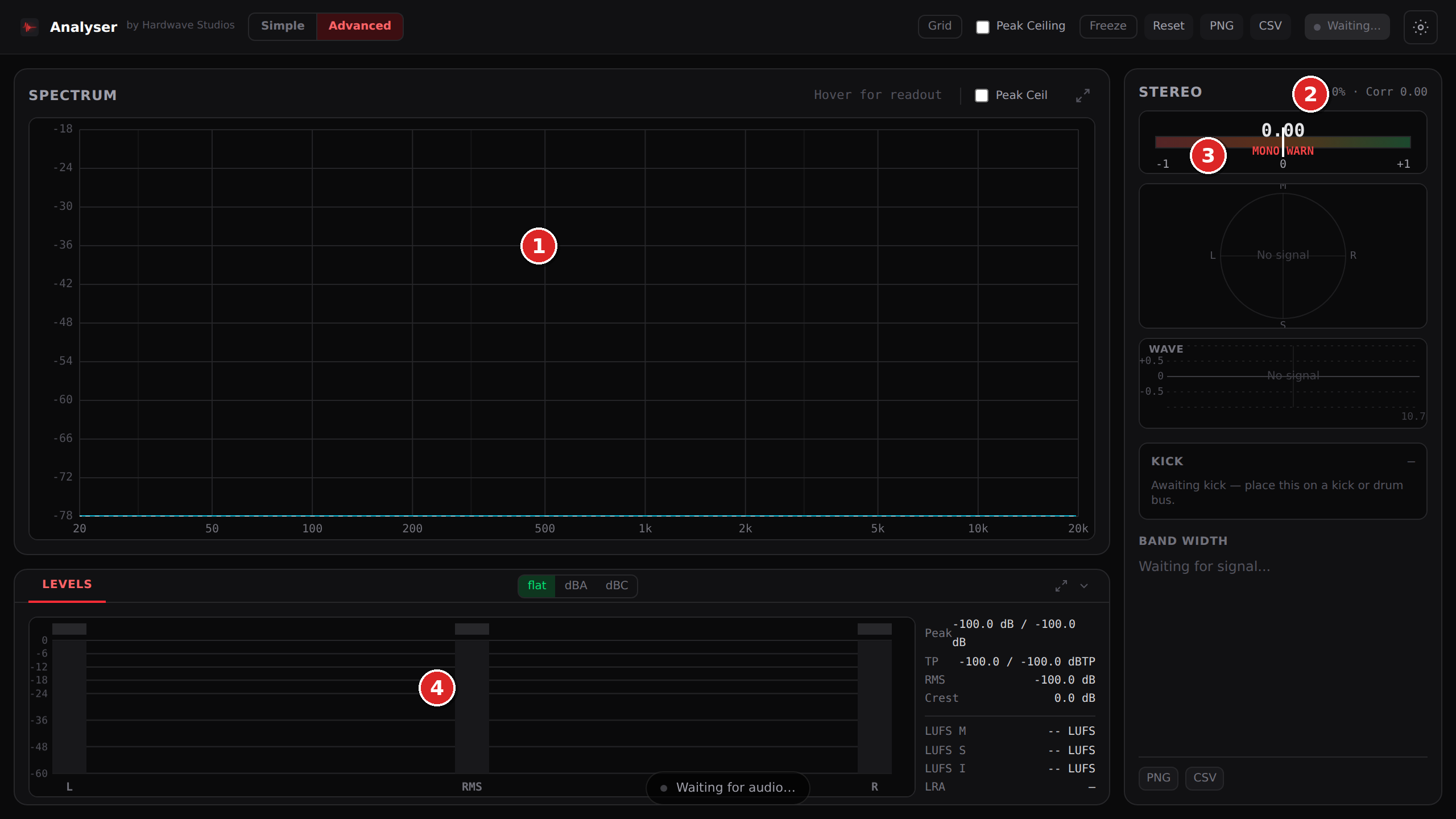
Hardwave Analyser is a real-time spectrum and metering plug-in built specifically for hardstyle, rawstyle, and hardcore production. It runs as VST3 or CLAP inside any modern DAW, and the entire interface lives directly inside your project as an embedded webview — no separate window to alt-tab to, no popping out of your workflow.
Most analyzers are designed for general-purpose music production. Hardwave Analyser is tuned for harder styles, where the kick is everything and the low end has to translate from your studio to a festival stack to a phone speaker without losing punch.
What makes it different
Higher-resolution FFT in the low end. Most analyzers use a fixed-resolution FFT that compromises detail in the lows. Hardwave Analyser is tuned to give you separate peaks for the kick fundamental, second harmonic, and punch click area instead of one blurry blob.
Embedded inside the DAW. No separate window. The analyzer renders as part of the plug-in UI itself, so you can A/B against your reference without ever leaving the project.
Accurate stereo metering. Width and phase correlation that responds fast enough to catch transient phase issues on a kick — not just slow average readings.
Free for every Hardwave account. No trial limit, no subscription, every feature unlocked.
Installation
Hardwave Analyser is installed through Hardwave Suite — the free desktop app that manages all your Hardwave plug-ins, licences, and updates. There is no separate manual download.
Download Hardwave Suite from hardwavestudios.com/downloads.
Sign in with your Hardwave account (free to create if you don't have one).
Click Install next to Hardwave Analyser.
Open your DAW. Rescan plug-ins if it doesn't appear automatically.
Suite installs to the standard system VST3 / CLAP folders and registers the licence to your account. Updates are automatic — when a new version ships, Suite installs it the next time you launch.
If your DAW doesn't see the plug-in after installing, force a rescan. In FL Studio: Options → Manage plug-ins → Find more plug-ins. In Ableton: Preferences → Plug-Ins → Rescan. In Bitwig: Settings → Locations → Refresh.
Interface tour
The plug-in window has four primary panels. The spectrum is the largest, with metering on the right and the levels panel along the bottom. Everything updates live as audio passes through.
Hardwave Analyser in Advanced mode, before audio is routed through. (1) FFT spectrum · (2) stereo width "W" · (3) phase correlation "Corr" · (4) peak / RMS / LUFS metering. The panels light up live as soon as the plug-in receives signal.
Spectrum. Real-time FFT curve showing the frequency content of the signal passing through.
Stereo width readout. The W percentage in the Stereo panel header (0% = mono, 100% = fully wide).
Phase correlation meter. Horizontal bar below the width readout, ranged from -1 to +1. The Corr reading in the header shows the current value.
Peak / RMS / LUFS metering. The LEVELS panel shows true-peak (dBTP), RMS, crest factor, and integrated LUFS for each channel.
The goniometer (circular L/R/M/S display below the correlation bar), the WAVE panel, KICK fundamental tracker, and BAND WIDTH meter all complement these primary readouts — see their dedicated sections below.
Spectrum analyser (FFT)
The spectrum is the core of any analyzer. Hardwave Analyser's spectrum is a real-time FFT — Fast Fourier Transform — that converts the time-domain audio passing through into a visualisation of how much energy is at each frequency.
How to read it
The horizontal axis is frequency, low on the left, high on the right. The vertical axis is loudness in dB. The curve shows the energy at each frequency right now.
For hardstyle production, the most important areas are:
40-80 Hz — kick fundamental. This is the punch you feel in your chest at a festival.
100-200 Hz — kick body, second harmonic. Adds weight and definition.
1-3 kHz — kick punch click. The "tok" sound at the start of every kick.
5-10 kHz — air and presence. Cymbals, fx tails, vocal sibilance.
Resolution and why it matters
FFT resolution is the number of frequency bins the analyzer measures. Low resolution = blurry curve, high resolution = detailed peaks. Most analyzers compromise toward fast updates, which makes the low end where the kick lives look like one big bump instead of separate peaks for the fundamental and harmonics.
Hardwave Analyser uses a higher-resolution FFT specifically tuned for the lows. In practice this means you can identify the exact frequency of your kick fundamental, see whether the second harmonic is too loud or too quiet relative to the fundamental, and spot resonances or clashes in the low-mids that other analyzers miss.
A/B Hardwave Analyser against SPAN on the same kick. Same channel, same source. SPAN at default settings will show your kick low-end as one blob. Hardwave shows you the actual harmonic structure as separate peaks.
Stereo width readout
The Stereo panel shows your current stereo width as a percentage readout in the panel header — labelled W. 0% means a fully mono signal, 100% means a fully wide stereo image.
How to read it
Reading
What it means
When you want it
`W 0%`
Fully mono
Sub bass, kick fundamentals
`W 30–60%`
Healthy stereo image
Most synths, leads, percussion
`W 70–90%`
Wide
Reverb tails, atmospheric pads, fx risers
`W 100%`
Maxed-out wide, often phasey
Almost never on the master — risk of mono cancellation
Practical use
For hardstyle the rule of thumb is: low end mono, mids healthy stereo, highs free to be wide. If your kick or sub is reading high on the W readout, something is wrong — usually a stereo widener, a stereo reverb, or unintended phase from a stereo recording.
The goniometer below the width readout (the circular L/R/M/S display) shows your stereo image visually as a Lissajous pattern. A vertical line = mono. A diagonal blob = wide. A horizontal line = anti-phase (bad).
If you see W spiking to 90%+ during a drop, check your phase correlation immediately. Wide on its own is fine. Wide with negative phase correlation means your low end is going to disappear on a mono system.
Phase correlation
The horizontal bar below the width readout is the phase correlation meter. It runs from -1 on the left to +1 on the right, with 0 in the centre. The current value is shown both on the meter itself and as Corr in the panel header. Red MONO / WARN labels light up when correlation drops into negative territory.
Reading
Means
Behavior in mono
+1
L and R identical (pure mono)
Perfect — sums to itself
+0.5 to +1
Strongly correlated, healthy
Solid mono compatibility
0
Wide stereo, uncorrelated
Acceptable mono, slight level drop
-0.5 to 0
Phase issues
Some cancellation, weakens the mix
-1
L and R completely inverted
Total cancellation, signal disappears in mono
Why it matters for hardstyle
Hardstyle gets played on every system that exists — festival main stage PAs, club rooms, headphones, phone speakers, car audio. Many of these collapse the stereo signal to mono, fully or partially:
Subwoofers always sum mono. Every sub on every system, indoor or out.
Festival PAs in the back of the crowd often phase-cancel into a near-mono image.
Phone speakers, club speaker corners, single Bluetooth speakers are all mono.
If your drop has phase correlation below 0, those listeners hear a weaker, thinner version of the track — sometimes the kick straight up disappears. That is not a "we'll fix it in mastering" problem; it is a fundamental mix issue that has to be caught at the analyzer.
If your phase correlation meter dips into negative territory consistently, mute everything except the master and start unmuting elements one at a time. Whichever element makes the meter go negative is the problem. Usually a stereo widener or a phase-shifted bass.
Quick test: A/B mono
Most DAWs have a master mono switch. Toggle it on during your drop. If the kick gets noticeably weaker or thinner, you have a phase correlation problem and the meter is telling you about it before you ever ship the track.
Peak metering (peak ceiling)
The peak meter shows the highest signal level your audio is hitting, in dBTP (decibels true peak). The peak ceiling is the threshold above which clipping or inter-sample distortion happens on conversion.
True peak vs sample peak
Sample peak measures the highest sample value in the digital audio buffer. True peak measures the highest signal level after digital-to-analog conversion or lossy encoding (MP3, AAC, Opus). True peak is always equal to or higher than sample peak.
Hardwave Analyser shows true peak by default. This matters because hardstyle kicks routinely push into inter-sample peaks — your DAW's master meter says you're at -0.3 dB, but after encoding to MP3 the actual signal is hitting +0.2 dBTP and clipping.
Targets to aim for
Target
dBTP ceiling
Why
Streaming master (Spotify, Apple Music)
-1.0 dBTP
Avoids inter-sample peak distortion on lossy encoding
Club / DJ promo
-0.3 dBTP
Loudest while staying clean
Mix bus before mastering
-6.0 dBTP
Headroom for the mastering chain
The peak-hold marker on the meter holds the highest peak it has seen. If you see the marker stuck at +0.1 dBTP after a full playthrough, something has clipped at some point — even if you didn't hear it. Reset the marker (click on the meter) and play through again with attention.
Workflow tips
Where to put the plug-in in your chain
The most useful place for Hardwave Analyser is on your master bus, after your mastering chain (limiter, EQ, etc.). This shows you what your audience will actually hear.
You can also drop instances on individual channels — kick bus, bass, master — to compare and check specific elements. The plug-in is light enough that running multiple instances shouldn't strain CPU.
Reference track A/B
Bypass your master chain temporarily and play a reference track at matched loudness. Compare the spectrum shapes side by side. Where is your kick fundamental compared to the reference? Is your high end thinner? Are you missing energy in the low-mids? This tells you more in 30 seconds than an hour of guessing.
Don't chase reference curves
Every kick is different. Every track is different. Use references as a sanity check, not as a target to match exactly. Your mix should sound like itself — the analyzer is there to catch problems, not to make every track sound the same.
Troubleshooting
Plug-in doesn't show up in my DAW
Force a rescan. If still not visible, check that the VST3 / CLAP file is in the correct system folder. Restart your DAW.
The webview is blank or grey
This usually means a security policy is blocking the embedded webview. On macOS, ensure Hardwave Analyser is allowed in System Settings → Privacy & Security. On Windows, check that no antivirus is blocking the WebView2 runtime. Reinstalling via Hardwave Suite usually fixes both cases.
High CPU usage
The default FFT settings are tuned for visual smoothness on a modern laptop. If you see CPU spikes, lower the FFT update rate in the plug-in settings (gear icon top-right). The lower setting is still detailed enough for tracking — keep the higher setting for mastering.
Plug-in crashes my DAW
This shouldn't happen. If it does, please report it on Discord with the plug-in version, your DAW name and version, and your OS. We treat crashes as P0 bugs and ship a fix in days.
FAQ
Why is it free?
The Analyser is the entry point to the Hardwave ecosystem. Once you have a Hardwave account, upcoming plug-ins (LoudLab, WettBoi, and more) plug into the same account — no re-creating accounts or managing licences separately. The Analyser stays free forever.
Will it ever require a subscription?
No. The Analyser is free for every Hardwave account permanently. Subscriptions and one-time purchases apply to other plug-ins.
VST3 vs CLAP — which should I use?
Both work identically for the Analyser. Use CLAP if your DAW supports it (Bitwig, Reaper, FL Studio with the CLAP plug-in installed) — it's a more modern format. Otherwise VST3.
Is there a Mac version?
Yes. Universal binary, runs natively on both Intel and Apple Silicon Macs.
Can I use it on commercial releases?
Yes. The Analyser is a metering tool, not a creative effect — it doesn't add to your audio. Use it freely on anything you produce.
How do I update?
If you installed via Hardwave Suite, updates are automatic. For manual installs, download the latest version from your dashboard and replace the existing files.